Explore Dreem World Builder
Dreem Team · July 11, 2026
The World Builder is the central workspace for editing every aspect of a World. This chapter covers the World Spec review, character creation and editing, location editing, and how the Agent chat panel on the right assists with building.
The three-step review flow
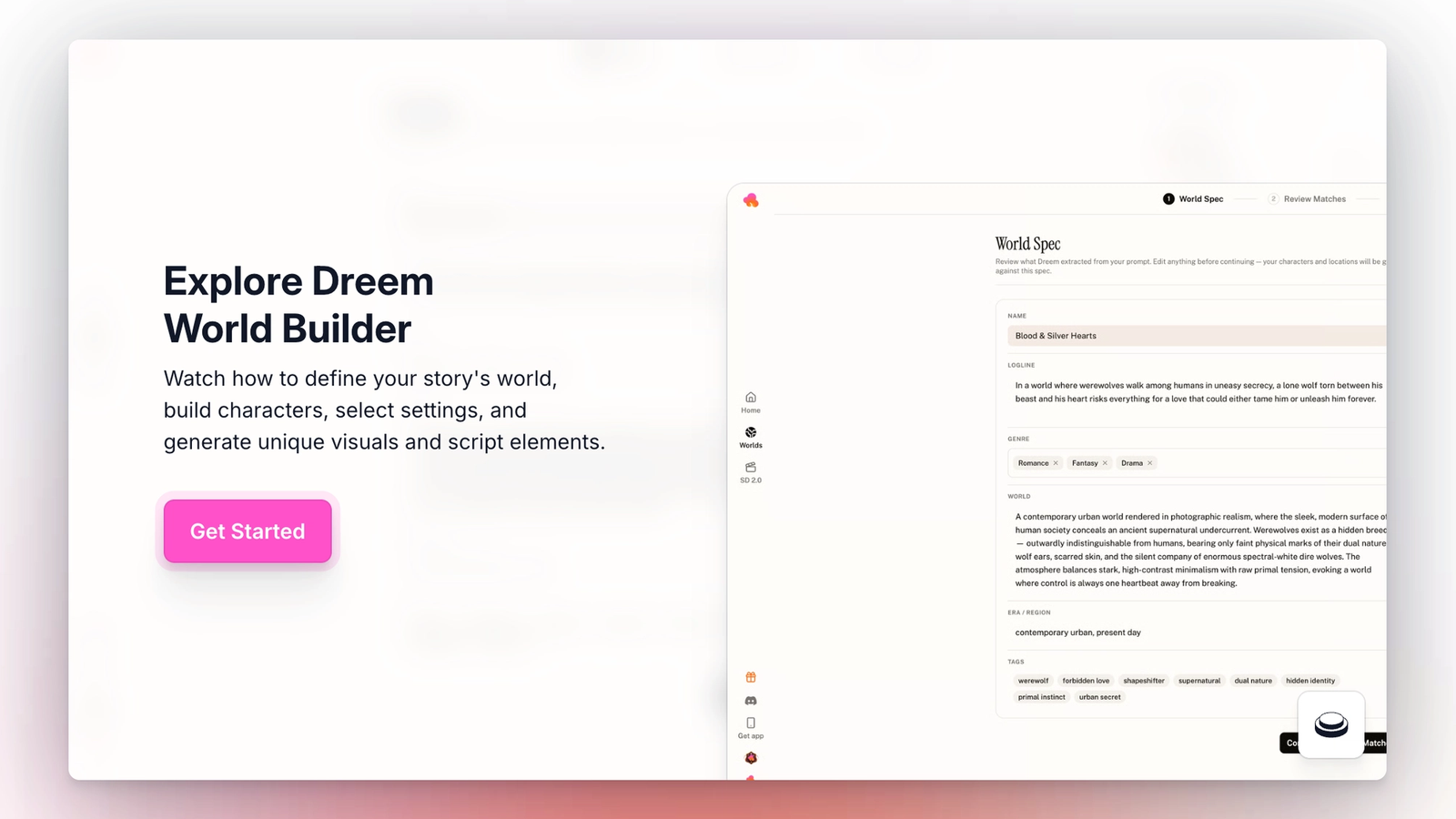
When a World is first created through the Agent, the World Builder opens in review mode. Review mode has three sequential steps shown at the top: World Spec, Review Matches, Script Review. Each step must be completed before moving to the next.
World Spec shows what the Agent extracted from the prompt: name, logline, genre, world description, era/region, and tags. All fields are editable. This is the last chance to change high-level world details before characters and locations are generated against this spec.
Review Matches shows the characters and locations the Agent has identified for the World. Anything unwanted can be removed by clicking the trash icon; anything removed can be restored before generation begins. Expanding a character card reveals detailed fields (name, role, age, gender, figure, looks-like) that can be edited before generation.
Script Review shows a first draft of the story script. Edits made here shape the story that will be generated. Once satisfied, clicking "Confirm & Generate World" creates the World and moves out of review mode.
The Agent chat panel
The right side of the World Builder is a persistent Agent chat panel. It shows every step the Agent has taken (world spec drafted, characters built, locations built, story cover generated) and offers next actions as buttons: Generate images, Generate story, and similar. The Agent can also be prompted directly for custom help.
The chat panel is available in every view inside a World. It is the recommended way to make changes to multiple assets at once, or to get the Agent's help writing lore, character personalities, or story beats.
Character sections
Each character in a World has six visual sections: Face, Body, Mood, Outfit, Stickers, and Others. Only Face is required.
Face is the character's identity anchor. It is a head turnaround with four views (front, three-quarter, side, back). It can be generated by the Agent or uploaded manually. Uploaded images can be cropped inside Dreem using the Recrop tiles tool, which allows adding columns and rows to break a single image into multiple views.
Body is a full-body turnaround. It is generated from the Face image once Face is complete. Body is used when the character needs to appear in wider shots or when body language matters.
Mood is an expression set of six emotions drawn from the character's Face. Mood images give video generation a canonical reference for how the character reacts. They are also used in the chat side of the character when talking to viewers.
Outfit is a full outfit set. Each character can have multiple outfits. Outfits are used to swap what the character wears across different scenes or storylines.
Stickers are chat-ready expressions the character can send to viewers via chat in the Dreem App. Each sticker has a name and description used by the AI to pick the right sticker in context. Viewers can save and share stickers.
Others is for character-tied objects and props — vehicles, weapons, pets, mounts. Naming these clearly matters, because the AI references them by name in later generation.
Character spec fields
Below the visual sections, each character has a spec panel with Identity, Personality, Background, Form, and Physical fields. These are text fields that describe the character in the same way a screenwriter would write a character sheet.
Filling in the spec is optional for creating a character, but critical for anything downstream. The chatbot uses these fields to speak in the character's voice. Story generation uses them to keep the character consistent across episodes.
The Habits, Never Says, and Catchphrase fields have the most impact on how alive a character feels in dialogue. Writing them behaviorally (what the character does, not what the character is) produces the best results.
Locations
Each location has a Location name, Identity (type and placement), Setting (era, materials, time of day), Atmosphere (light, atmosphere, iconic detail), and Others (free-form notes for AI reference). Locations can be uploaded or generated. Uploaded images do not need to match Dreem's visual style.
Location descriptions are read by the Agent during video generation to keep scenes consistent. A well-described location produces more consistent video output than a bare one.
The @ mention system
Any character or location in a World can be referenced elsewhere using @. Typing @ in a video prompt, interaction, or script opens a picker that lists every asset in the World. Selecting one inserts it as a reference, which pulls in the image and metadata during generation.
@ mentions are the connective tissue of a Dreem story. They are how the same character stays visually consistent across every video node.